
A hardware device that disappears from Windows often needs a direct reconnection, a fresh pairing, or a detection refresh. Start with the connection, not advanced repairs. A Code 45 message means Windows does not currently detect the device, but it does not prove the device or its driver is broken.
A device driver is software that lets Windows communicate with a hardware device. The right fix depends on whether the device uses a cable, Bluetooth, or a network connection. You can work through safe checks before changing settings or replacing software.
Most problems have a simple first step. Begin with the basic reconnection sequence, then follow the path that matches your device if Windows still cannot find it.
Key Takeaways
- Reconnect the device before changing Windows settings.
- Restart Windows and check whether the device appears.
- Code 45 reports a missing connection, not a confirmed fault.
- Use the steps for wired, Bluetooth, printer, audio, or Wi-Fi devices.
- Check the exact Device Manager status before changing drivers.
How Do I Reconnect a Hardware Device to My Computer?
Reconnect the device, restart Windows if needed, then check whether the computer detects it. Most devices work again after a simple connection check, since Windows often detects connected hardware automatically.
How do I reconnect a hardware device to my computer in Windows 11 or Windows 10? The basic physical checks are the same in both versions. Do not start by removing drivers when the device may simply be disconnected.
Reconnect the device first, then restart Windows and check detection before changing software.
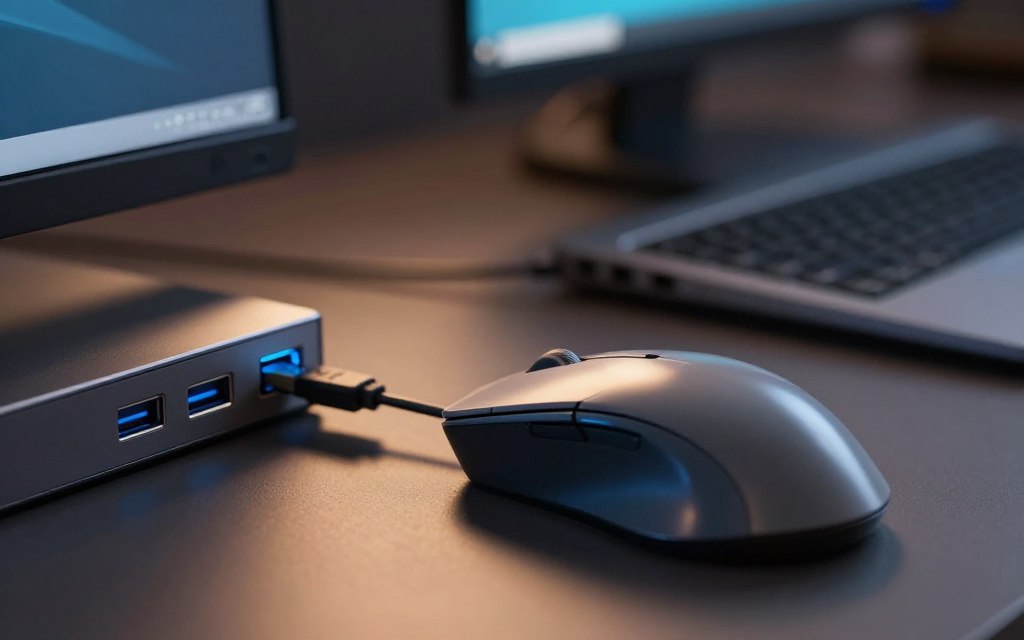
- Disconnect an external device, wait a few seconds, then connect it again.
- Restart the computer with the device connected, if its instructions allow that.
- Check whether Windows lists or responds to the device.
- If it remains missing, follow the troubleshooting path for its connection type.
For a USB keyboard, use a direct computer port and watch for a light or sound. A printer may need its own power button pressed after reconnection. A Bluetooth headset follows a different route because it has no cable to reconnect.
Windows may take a short time to recognize a newly attached accessory. Check its app or the Windows device list before assuming the attempt failed. If the device has a separate power supply, confirm that it is on.
If the device still appears absent, Code 45 can help explain what Windows reports. It is a clue about detection, not a diagnosis of damage.
What Does Code 45 Mean in Windows?
Code 45 means Windows currently reports that the hardware device is not connected or present. The status is about detection, not proof that the device has failed.
A disconnected backup drive can show this error even when it works as expected. If you intentionally unplugged a device, Code 45 usually needs no repair. If the device should be available, check its connection before changing software.
The error message alone does not show whether the hardware or its device driver is faulty. Windows may report the same status when an external accessory is unplugged, or when a built-in device is not detected.
To consider how to fix Code 45 in Windows 11, start with the connection, power, and pairing checks that fit the device. Then inspect its Device Manager status. Targeted software troubleshooting makes sense only if the device stays missing after those checks.
Do not treat the error code as a reason to replace hardware. A working mouse stored in a drawer can appear with Code 45, while a connected device may have a different driver or status issue.
Read the exact status before taking action. Confirm the device should be connected, then verify that connection before changing its driver.
Which Cables, Ports, and Power Checks Should You Try First?
A loose USB plug can make a working camera seem absent from the computer. Check the connection first and look for damage before trying Windows repairs.
Seat each plug firmly without forcing it. Check the cable and connector for bends, cracks, or dirt, and confirm that any power switch is on. For a rechargeable device, check its charge and try it while connected to power.
Check the cable and connector
Try another compatible cable when you have one. A cable that charges a device may not carry data, so use one meant for that device. A second cable can help separate a cable issue from a device issue.
| Device or connection type | First physical check | Alternate test | What the result suggests |
|---|---|---|---|
| USB accessory | Seat its USB plug firmly | Try a compatible data cable | A new cable working points to the old cable |
| External drive | Check its USB and power leads | Use another direct computer port | One working port suggests a port issue |
| Printer | Check power and the USB lead | Try another compatible USB cable | Detection with the new cable suggests a cable fault |
| Device through a hub | Check the hub’s computer lead | Connect the device directly | Direct detection points to the hub or its power |
Try a direct port and confirm power
A USB device is best tested in a port connected directly to the computer, rather than through a USB hub. Some hubs may not provide enough power for a drive or other accessory. If the hardware device connected through a hub is missing, bypass the hub during testing.
- Check whether a plug feels loose or slips out easily.
- Look for a power light on the device or its adapter.
- Check whether the connector has visible dirt or damage.
- Note whether the device charges but fails to transfer data.
For more examples of systematic connection checks, see this guide to common computer hardware problems. When there is no cable to inspect, move to wireless pairing.
How Do You Pair a Bluetooth Device Again?
A headset can appear in Windows but fail to reconnect after you use it with another device. Pair it again by turning on Bluetooth, clearing an old pairing if needed, and starting a fresh connection.
In Windows 11, open Settings > Bluetooth & devices and make sure Bluetooth is on. Keep the headset, mouse, or keyboard near the computer during setup. Powering on an accessory is not always the same as putting it in pairing mode.
Remove the old pairing and start fresh
If the accessory appears in the Bluetooth list but will not connect, select its listing and remove it. The exact control can vary by accessory and Windows screen. Removing an old entry lets Windows try a new connection instead of relying on stale pairing details.
Check the accessory’s own instructions for its pairing control. A headset may need a button held for several seconds, while a mouse may have a small switch. Look for a flashing light that signals pairing mode.
Put the accessory into pairing mode
Return to Bluetooth settings and start adding or pairing a device. Choose the accessory when Windows shows it, then follow the prompts. Keep it close until the connection finishes.
If a Bluetooth keyboard is the only input device, use the computer’s built-in keyboard or another input method during setup. If the accessory does not appear, confirm it is not still connected to a phone or tablet. That other connection can prevent it from showing up for the computer.
If Bluetooth settings do not list the device at all, use the manual-add route rather than repeating a failed connection attempt.
Where Can You Manually Add a Device in Windows 10 or 11?
Use Settings to start manual device discovery when Windows has not added an accessory on its own. Choose the route that matches your Windows version, then follow the on-screen prompts.
Keep a wireless accessory nearby and in pairing mode when Windows asks for it. Manual discovery can find a ready device, but it cannot fix a device that is off or out of range.
Add a device in Windows 11
Open Start > Settings > Bluetooth & devices > Devices > Add device. Select the type of device and follow each prompt. For Bluetooth pairing, confirm Bluetooth is on before starting discovery.
Add a device in Windows 10
Open Start > Settings > Devices > Add Bluetooth or other device. Pick the option that matches the accessory, then follow the instructions shown in Settings.
| Windows version | Settings route | Button or action | Best fit |
|---|---|---|---|
| Windows 11 | Settings > Bluetooth & devices > Devices | Select Add device | Adding a nearby accessory in Windows 11 |
| Windows 10 | Settings > Devices | Select Add Bluetooth or other device | Finding an accessory in Windows 10 |
| Bluetooth pairing | Bluetooth settings for your Windows version | Choose the Bluetooth option | Pairing a nearby accessory in pairing mode |
Windows 10 support ended on October 14, 2025. The operating system still works, but it no longer receives regular support from Microsoft.
If you select Add device and Windows still cannot find the hardware, check its status in Device Manager. A device may need a different kind of troubleshooting than manual discovery can provide.
How Can You Check a Device’s Status in Device Manager?
A warning icon beside a device in Device Manager can point to a status message or error code. Read that status before choosing a repair.
Open Device Manager by searching for its name from Start. Expand the category that best fits the device, such as Keyboards, Sound, or Universal Serial Bus controllers. A device’s error code appears in the Device status area of its Properties dialog.
Right-click the likely entry and select Properties. In the dialog, open the General tab and read the Device status box. Note the full message and code, not just the warning icon.
A missing device may sit under a different category than you expect, or it may not be listed while Windows cannot detect it. Check related categories before deciding that no entry exists. You can also look for an unknown device or a name you do not recognize.
Different codes call for different steps. A status message can point to a disabled device, a driver issue, or a detection problem. Microsoft explains where to find these messages in its Device Manager error code guide.
Write down the exact code and device name. Reinstalling a driver is appropriate only when the status and symptoms point to a detection or driver issue, not simply because an icon looks unfamiliar.
How Do You Reinstall a Device Driver?
Reinstalling a device driver can make Windows detect connected hardware and rebuild its driver setup. Use this step after checking the connection and the device status.
Open Device Manager and find the affected entry. Right-click the device and select Uninstall device. Do not choose an option to delete driver software unless you know how to get a replacement.
Uninstall the affected device
After uninstalling, restart the computer. Reconnect the physical device if you unplugged it. Windows can detect connected hardware after the restart and install a compatible driver.
Let Windows detect it again
If the device does not return, open Device Manager and select the Action menu bar. Choose Scan for hardware changes. The action is often shown as Action > Scan for hardware changes, and it asks Windows to search again.
Some instructions say to select scan hardware changes, or select Scan hardware from the action menu. Use the full Scan for hardware changes option when it appears. If the menu bar is hidden, maximize the Device Manager window and check its Action menu.
- Confirm the device is connected before scanning.
- Restart the computer after uninstalling the entry.
- Verify the device status after the scan finishes.
A device driver may reinstall automatically after Windows detects the device. If it does not, check whether the entry returned under another category. Windows may install a compatible driver, though it may not be the newest version or include every manufacturer feature.
Should You Update or Roll Back the Device Driver?
A printer may appear in Windows but still fail after Windows installs a driver. Choose the driver route based on when the problem began and whether the current driver supports the exact model.
Device Manager can search automatically, while the hardware maker may offer a model-specific driver. Use only a driver made for your device and Windows version. Avoid third-party download sites that bundle unknown software.
Update through Windows or the manufacturer
In Device Manager, open the device’s Properties or driver options and start an automatic driver search. Windows may find a compatible driver. It may not be the latest version or include special features and fixes from the manufacturer.
For a more specific choice, find the exact model on the hardware manufacturer’s official website. Read its compatibility notes before installing. A driver for a similar model or another Windows version may not work as expected.
| Option | When it fits | Where to get or start it | Main limitation |
|---|---|---|---|
| Windows automatic search | Trying a simple compatible driver update | Device Manager driver options | May not find the newest model-specific driver |
| Official manufacturer driver | Need a driver for the exact model | Manufacturer’s official support site | Must match the model and Windows version |
| Rollback | Issue began after a driver change | Device Properties, Driver tab | Button may be unavailable |
Roll back after a recent driver change
Use Roll Back Driver when the trouble began soon after a driver update and the control is available. It returns to an earlier driver. If the button is unavailable, Windows may not have an earlier version stored.
A generic driver can keep the device working while leaving out manufacturer features. If a driver change does not help, update Windows itself before moving to deeper repairs.
Can Windows Update Fix a Hardware Connection Problem?
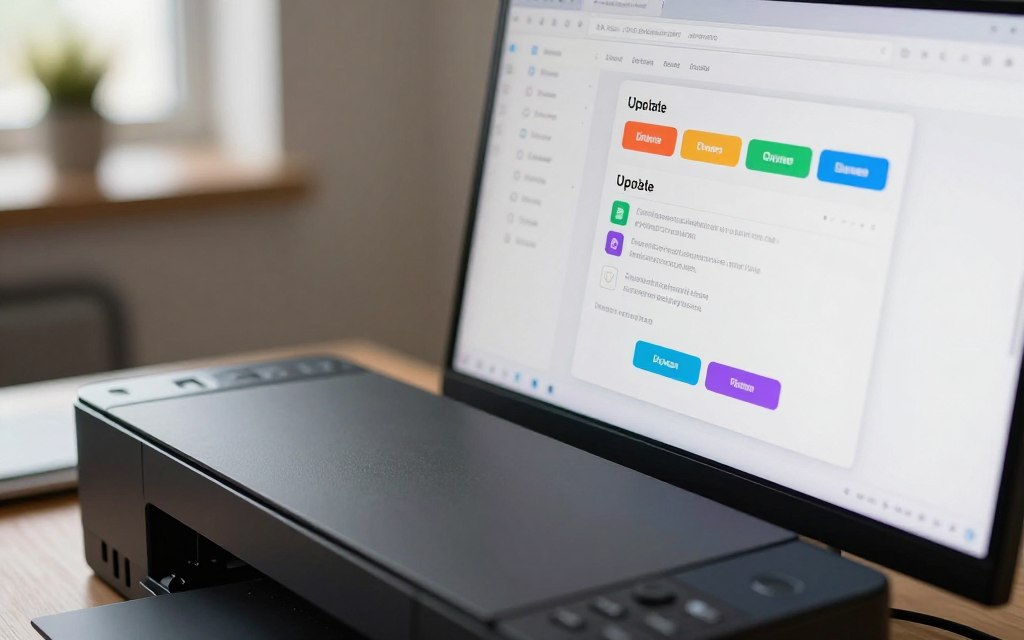
Windows updates can include hardware compatibility improvements, bug fixes, and driver updates. An update may help when Windows has a known issue affecting a device, but it is not a guaranteed fix.
Open Settings > Windows Update and select Check for updates. Install suitable available updates, then restart the computer and test the device again. Restart before deciding whether an update changed the connection.
An update can help if a device stopped working after a Windows update, especially when a later fix addresses a related problem. Yet a new update may not address the cause. A loose cable, disabled accessory, or model-specific driver issue still needs its own check.
Review the update details before installing optional driver updates. Choose an update that matches the device and the problem. If the device works for one task but not another, test the affected app too, since the connection itself may be sound.
Keep a note of what changed and when. That can help you tell whether the problem began after an update or continued from an earlier connection failure. Avoid repeatedly installing the same update when the device remains missing.
If a standard update does not help, return to the device-specific checks. Printers and audio devices can be missing for reasons that differ from a USB drive or Wi-Fi adapter.
What Should You Check for a Printer or Audio Device?
A printer can show as offline in Windows even while its power light is on. Check its connection, then see whether Windows lists it.
For a printer, confirm power and check its USB cable or network connection. For audio, select the intended output device in Windows sound settings and inspect the device’s status in Device Manager. A status message means Windows does not currently detect the named hardware.
Reconnect a printer
Check that a USB printer is attached directly or that a network printer uses the expected Wi-Fi or wired network. Confirm the printer appears in Windows’ printer list. If it is absent, check its cable or network connection before changing software.
Troubleshoot an audio device
Choose the speakers or headset you want Windows to use. If no expected output appears, inspect the audio device in Device Manager. A message may read, “currently, this audio hardware device is not connected to the computer (Code 45).”
Some users see “Realtek audio, currently this hardware device is not connected to the computer (Code 45).” That wording says Windows does not currently detect the relevant hardware. It does not promise that a specific Realtek fix will solve the cause.
| Device | Connection to verify | Windows check | What a failed check suggests |
|---|---|---|---|
| USB printer | Printer power and USB cable | Look for it in Printers & scanners | Missing listing may point to cable or detection trouble |
| Network printer | Same network as the computer | Check the printer list and status | Offline status may point to network access |
| Audio device | Speaker, headset, or audio connection | Check output choice and Device Manager | Missing entry suggests Windows cannot detect it |
If the printer appears but stays offline, its own screen may show a network or paper alert. For a missing network adapter, use the Wi-Fi-specific checks instead.
Why Isn’t Windows Finding a Wi-Fi Adapter?
Windows may not find a Wi-Fi adapter because it is disabled, its driver has a problem, or the hardware is not being detected. Check its status before treating this as a network outage.
A built-in adapter cannot be unplugged like a USB accessory. A Code 45 on a Wi-Fi adapter is a Windows detection status, not proof that the adapter has failed. Check whether the adapter is enabled in Device Manager and BIOS or UEFI.
- Confirm airplane mode is off.
- Check the adapter’s status in Device Manager.
- Check whether BIOS or UEFI has disabled the adapter.
- See whether other devices can use the same Wi-Fi network.
If other devices connect, the router and internet link may be working while the computer has a local adapter issue. If none connect, the problem may involve the network or router instead of the computer’s adapter.
Some computers let you turn wireless hardware off through a keyboard key or a setting in BIOS or UEFI. The menu name varies by model. Do not change unrelated firmware options while looking for the wireless control.
For a built-in adapter, use the computer manufacturer’s support page to find model-specific drivers or firmware. Check the exact computer model before installing anything. An adapter missing from Device Manager may require a different check than one that appears with an error.
A network reset is for broader network-configuration problems. It is not the first response to a physically missing adapter.
When Should You Reset the Computer’s Network Adapter?
A network reset is a broader software troubleshooting step, not a physical reconnection. Use it for ongoing network problems after basic Wi-Fi checks, not for one disconnected USB device.
Windows network reset removes and reinstalls network adapters, then returns network settings to their defaults. Record any special network setup before resetting. You may need to reconnect to Wi-Fi or set up custom network tools again.
Open Settings and find the Network reset option under the network settings for your Windows version. Read the on-screen notice before confirming. The reset changes network configuration, so do not use it as a casual test for every device error.
- Saved network connections may need to be set up again.
- VPN or virtual networking software may need attention.
- A reset may not repair a faulty adapter.
A work computer may rely on a VPN client or a virtual network adapter. Keep its setup details before resetting, and contact your workplace support team if you do not control those settings.
After the reset, reconnect to the right Wi-Fi network and test the original network task. If the problem is still limited to one missing device, the reset was unlikely to address its cause.
Only move to Windows system-file checks when the network issue comes with wider signs of system problems.
Can SFC or DISM Help With Repeated Windows Detection Problems?
SFC and DISM can help when a detection problem comes with wider signs of Windows file corruption. They are not routine fixes for every disconnected device.
Open Command Prompt as an administrator by searching for Command Prompt, then choosing Run as administrator. Enter sfc /scannow and wait for verification to finish. Keep the window open while the scan runs.
Run System File Checker
System File Checker checks protected Windows files and tries to repair problems it finds. Read the final message in the Command Prompt window. If it says some files could not be repaired, DISM may help repair the Windows image used for system files.
Use DISM if SFC cannot repair the files
In the administrator Command Prompt, enter DISM /Online /Cleanup-Image /RestoreHealth. A DISM scan may take up to 20 minutes. Let it finish, then restart Windows and check the device again.
Do not close the Command Prompt because the progress seems slow. If either command returns an error, note the exact message rather than repeating commands at random. The wording can help identify whether Windows repaired files or found a separate issue.
These tools make more sense when several Windows features show errors, not just one accessory. If the device remains missing after the restart, compare a computer-side software issue with a possible hardware fault.
How Can You Check Whether the Hardware Is Failing?
A drive that stays missing on two computers may have a device fault, a cable fault, or another cause. Compare the setup before deciding the hardware has failed.
For an external device, try a known-compatible cable and another computer port. Then test it on a second computer with a compatible connection. Failure on another computer raises suspicion, but one failed test does not prove the device is broken.
How to check if PC hardware is failing? Change one part of the test at a time. A different cable can identify a bad lead, while a different port can reveal a computer port problem. Testing another computer helps separate computer-side trouble from device-side trouble.
Note the results, including whether a light turns on, the device appears briefly, or Windows gives an error. A drive that powers up but never appears may still have a data or device issue. Avoid opening an external enclosure if doing so could damage it or affect support.
For internal hardware, use the computer maker’s model-specific guidance. Do not open the computer unless you are qualified and know how to handle its parts safely. Some internal devices need service tools or special steps.
For more examples of safe checks, see this hardware reconnection and Code 45 troubleshooting guide. If tests point to a device fault, ask the manufacturer or a qualified technician to assess it.
What If the Device Is Disabled or Shows a Different Error Code?
A device can appear in Device Manager while Windows marks it as disabled. Use its exact code, since different statuses call for different steps.
Code 22 means the device is disabled. In Device Manager, select the device, then choose Action > Enable Device. Code 29 is different: firmware has not provided required resources, so BIOS or firmware settings may need attention.
Match the repair to the status Windows shows. A disabled device and a missing device do not call for the same step.
Check whether the device appears after enabling it. If it remains unavailable, read the updated Device status message rather than repeating the same action. A status can change after Windows detects a setting or driver issue.
For other codes, use the exact number and the device’s documentation. Microsoft’s Device Manager code instructions describe common statuses and possible actions. Ask the manufacturer or Microsoft for help if you cannot identify the right next step.
Do not change BIOS settings unless you know which device setting you need. For a code you do not understand, note the device name and full message before seeking help. The next action should match the exact status and device type.
Conclusion
Check the connection before trying an advanced repair for a missing device. Start with the matching path for a cable, Bluetooth accessory, printer, audio device, or Wi-Fi adapter.
Code 45 alone does not mean the hardware is broken. If a device stays missing across ports or computers, manufacturer support may help narrow down the cause.
Before contacting the manufacturer or a qualified technician, note the device model and its exact Device Manager status. Those details can guide the next check.

 By
By

 By
By