
A device that disappears from Windows may only need its connection restored, not a replacement. If you are asking how do i reconnect this hardware device to the computer, start by identifying what kind of connection it uses. The right first step depends on whether you have a USB peripheral, a Bluetooth accessory, or built-in hardware.
First, check the physical connection. Then ask Windows to detect the device again, and try software troubleshooting only if it remains missing. A device that you disconnected on purpose may not need a fix at all.
Code 45 is a Device Manager status indicating that Windows does not currently detect the device as connected. The message can point to a simple connection problem, but it does not prove that hardware has failed. These steps help you choose a safe next move without changing unrelated settings or drivers.
Key Takeaways
- Match the error message to the correct device entry first.
- Reconnect a wired device before changing its driver.
- Pair a Bluetooth accessory again if its saved pairing fails.
- Use the Settings path that matches your Windows version.
- Test external hardware on another compatible port or computer.
- Contact the right manufacturer if the device stays missing.
Start by identifying the Windows status message so you can choose the right first fix.
What Does Code 45 Mean in Device Manager?
Code 45 tells you Windows does not currently see the device as connected. The full message reads, “Currently, this hardware device is not connected to the computer.” It describes current detection status, not proof of permanent failure.
Code 45 means Windows does not currently detect the device as connected. It does not, by itself, show that the hardware or driver is broken.
A device can show this error code when Windows has lost contact with it. The cause might be a disconnected accessory, a failed connection, or a temporary detection problem. The code alone cannot tell you which one applies.
If you reconnect a removable device, Windows may detect it and clear the status. A Bluetooth accessory may need its connection restored before Windows sees it again. Built-in hardware calls for a different check because you cannot unplug it like a USB device.
If you disconnected the device on purpose, you can ignore Code 45. There is no need to troubleshoot a status that matches what you intended. Leave the entry alone unless you need the device to work.
Device Manager uses status details to show how Windows sees connected hardware. A code may appear beside the affected entry, or within its Properties window. The precise device name helps you avoid changing the wrong driver.
For more help with connection checks and Code 45, see this guide to reconnecting a hardware device to your computer. Move from the status meaning to the steps for finding the exact device entry and error in Device Manager.
How Can You Find the Device and Its Error Code?
Start by matching the message to the exact device entry rather than guessing which driver to change. Search for Device Manager from Start, then open the result. Record the device name and its exact status before changing anything.
Expand the category that best fits the hardware. Audio inputs and outputs, Bluetooth, network adapters, and Universal Serial Bus controllers are common places to check. The device may appear in a different category, so inspect likely options.
Double-click the category to view its entries. Right-click the affected device and select Properties. The Device status area on the General tab displays the error message and code.
Write down the exact device name, its category, and the full message. These details help you distinguish a headset from built-in audio, or a USB device from a network adapter. They also give you useful facts to share with support.
If the device does not appear in Device Manager, changing an unrelated driver is unlikely to help. A missing entry makes a physical check or a new hardware scan more useful. For an external device, confirm that it is connected before asking Windows to detect it again.
A built-in component may be listed under a category that does not seem obvious. Check the device maker’s description if you are unsure which entry matches the hardware. Use the device type to choose between physical reconnection, Bluetooth pairing, or Windows detection steps.
How Do You Reconnect a Wired Device?
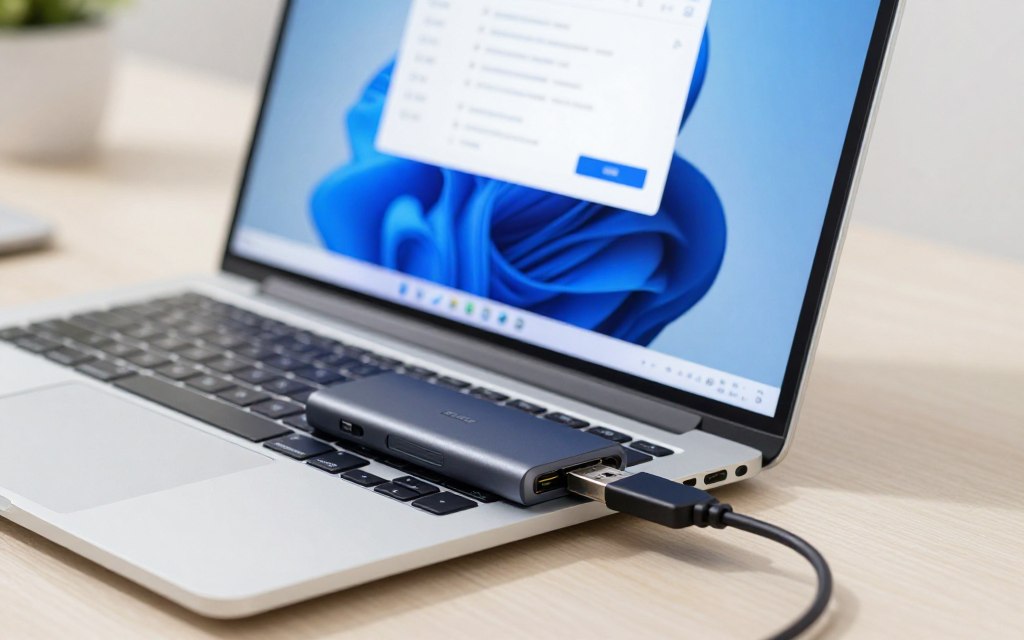
A loose plug or unreliable hub is a simpler explanation to rule out before changing Windows settings. Start with the connection, then check Device Manager to see whether Windows detects the device. Test the accessory directly on the PC, not through a USB hub.
USB devices, printers, and external drives may use different cables, but the first checks are much the same. Do not force a connector into a port. A plug should fit without pressure.
- Disconnect the device, then reconnect it firmly.
- Look for visible damage on the cable and connector.
- Try another compatible cable and a different port directly on the PC.
- Wait briefly, then check Device Manager for the device entry.
A different port can help separate a device problem from a port problem. Use a cable made for that device, since some connectors look alike but serve different purposes. If a cable has a loose plug or visible damage, do not rely on it for the test.
| Device | First physical check | Next connection test |
|---|---|---|
| USB peripheral | Check the USB plug and cable | Connect directly to another PC port |
| Printer | Check the printer’s USB cable | Try another compatible cable and PC port |
| External drive | Check its data cable and power lead | Connect directly to a different PC port |
A printer may need power as well as a data connection. Check that it is on before testing whether Windows sees it. An external drive with a separate power supply also needs that supply connected.
A built-in device cannot be unplugged like an external USB accessory. Use Windows detection steps for an internal network adapter, touchpad, or audio component. If the accessory connects wirelessly, use its pairing process instead of repeating cable checks.
For other common hardware problems, see this guide to troubleshooting computer hardware problems.
How Do You Reconnect a Bluetooth Device?
A Bluetooth accessory can stay listed in Windows even when its old pairing no longer works. Pair it again if a mouse, keyboard, or headset no longer connects. The accessory must be on and close to the PC during setup.
In Windows 11, Bluetooth settings are under Settings > Bluetooth & devices. Keep the accessory near the computer while you remove an old listing and start a new pairing. Some devices need a model-specific action to enter pairing mode.
- Turn Bluetooth on in Windows.
- Remove the old device listing if it remains.
- Put the accessory into pairing mode.
- Choose Add device and follow the prompts.
The pairing action varies by accessory. A headset may need you to hold its pairing button, while a keyboard may use a marked key. Check the device’s instructions if you do not know how to start pairing mode.
Keep a wireless mouse or keyboard within reach while setting up the replacement connection. If you are reconnecting your only mouse, use a laptop touchpad or another input device to complete the prompts. A low battery can also prevent an accessory from appearing.
Remove the old pairing and start again
An old listing can remain in Settings even when the accessory no longer connects. Remove it only if it is still listed and the saved connection has failed. Then use Add device to start a fresh pairing.
Put the accessory into pairing mode
Turn on the accessory and use the pairing action required by its model. Keep it close to the computer until Windows finishes setup. If a new pairing does not make the accessory appear, continue with Windows’ manual add-device options.
How Do You Add a Device Manually in Windows 11?
In Windows 11, manual discovery starts in the Devices page under Bluetooth & devices. Use this route when the hardware is ready but does not appear automatically. The prompts depend on the device type, and manual discovery cannot fix a disconnected cable or powered-off accessory.
Open Start > Settings > Bluetooth & devices > Devices, then select Add device. Follow the instructions on screen. The available choices can differ for a new external accessory and a wireless device.
If you are asking how do i reconnect this hardware device to the computer in Windows 11, this settings route applies after you have checked its connection. A USB accessory must be plugged in securely. A wireless device should be on and in pairing mode when required.
Keep a wireless accessory near the PC during discovery. Windows can only find a device that is ready to connect. A manual search is not a substitute for checking whether the device has power.
Microsoft’s instructions for adding a hardware device give the Windows 11 and Windows 10 Settings paths. Follow the on-screen prompts to complete setup for the selected device.
The result may differ depending on how the accessory connects. A wireless device needs a signal Windows can find, while a wired accessory needs a working physical connection. Readers using Windows 10 should follow that version’s separate Settings path.
Where Is Add a Device in Windows 10?
Windows 10 puts manual device discovery under Devices rather than the Windows 11 Devices page. Open Start > Settings > Devices > Bluetooth & other devices, then select Add Bluetooth or other device. Choose this path for Windows 10, not the Windows 11 route.
Follow the on-screen instructions to finish adding the hardware device. Keep it on and nearby during setup. A wireless device should be in pairing mode if its instructions require it.
If you ask how do i reconnect this hardware device to the computer in Windows 10, first make sure you are using this version-specific path. The prompts vary with the device. Windows cannot add an accessory that is off or physically disconnected.
Windows 10 support ended on October 14, 2025. Microsoft no longer provides free Windows Update software updates, technical assistance, or security fixes for Windows 10. The end of support does not mean that your PC has stopped working.
You can still use the computer, but the end of support changes the updates and help available from Microsoft. Avoid using Windows 11 instructions for a Windows 10 PC, since the Settings names and route differ.
Once Windows has been asked to detect the device, refresh detection before replacing or reinstalling its driver.
Should You Restart Windows or Scan for Hardware Changes?
A restart is worth trying when a device remains missing after you have reconnected it. Restarting refreshes Windows and may clear a temporary detection or driver state. A Device Manager scan asks Windows to look for hardware again.
Use a scan after reconnecting a device or removing its driver. In Device Manager, select Action > Scan for hardware changes. A restart is a low-risk refresh when the device still does not appear.
| Action | Best time to use it | What to check next |
|---|---|---|
| Reconnect the device | After a cable or plug came loose | Check for its entry in Device Manager |
| Restart Windows | After a temporary detection problem | Check whether Windows sees the device |
| Scan for hardware changes | After connection or driver removal | Look for a new device entry or status |
Save open work before restarting the computer. After Windows starts, check the same device entry you recorded earlier. A changed status can show that detection has returned, even if another issue still affects the device.
A scan is useful when Windows may not have noticed a recent hardware change. It does not repair a damaged cable or make an inactive accessory turn on. If detection still fails after a refresh, check whether the driver needs to be reinstalled.
How Do You Reinstall a Device Driver?
Reinstalling the affected driver is a reasonable next step after Windows has failed to recognize a properly connected device. Use Device Manager to remove the affected entry, then let Windows detect the hardware again. Removing a driver does not remove the physical device.
Windows may reinstall a compatible driver automatically after the computer restarts. Before uninstalling, read any prompt about deleting driver software. Do not select that option unless you understand what it removes.
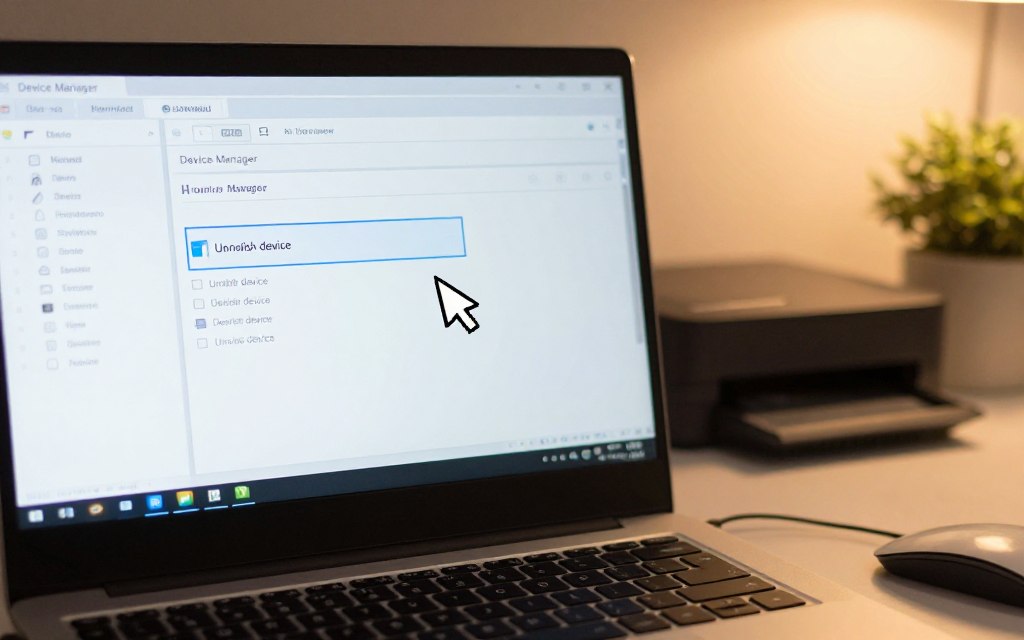
- Open Device Manager from Start search.
- Locate the affected device entry.
- Right-click it and select Uninstall device.
- Restart the PC, and reconnect the physical device if needed.
- Return to Device Manager and select Action > Scan for hardware changes if needed.
Use the exact entry you recorded earlier. If the device is not listed, do not uninstall a different device just to clear the status. A scan can prompt Windows to look for the hardware again after a restart.
Remove the affected entry in Device Manager
Uninstalling the entry asks Windows to remove its device record and driver setup. It does not unplug a USB accessory or erase the hardware. Read every confirmation prompt before choosing whether to delete driver software.
Check detection after Windows restarts
After restart, Windows should detect connected hardware and install a compatible driver automatically. If it does not, run a hardware scan in Device Manager. This is one option for how to fix Code 45 in Windows 11, but it is not a guarantee.
If Windows restores detection but the device still lacks features or remains unreliable, check for a driver made for its exact model.
When Should You Install a Driver From the Manufacturer?
A compatible Windows driver can restore basic recognition without necessarily supplying every feature for a specific device. Use a model-specific driver when the device appears but does not work properly or lacks features. Download it from the device manufacturer’s official website.
First, identify the exact device model. Check its label, product documentation, or the manufacturer’s support page. Match the driver to the Windows version installed on your computer.
A generic driver from Windows may be enough for basic recognition. A driver made for the model may add features, settings, or fixes that the generic one does not include. This can matter for printers, audio devices, and other hardware with special controls.
Use the manufacturer’s official website, not an unfamiliar download page. Check that the model and Windows version match before you download and install a driver. A driver intended for a different model may not work as expected.
An update is not automatically the right answer when Windows still cannot detect a disconnected device. Check the physical connection or Windows detection first. A driver can help only when Windows can work with the hardware and its software.
Do not assume the newest driver is always the best choice for every setup. Read the manufacturer’s instructions for the exact model and Windows version. Check Windows Update as another supported route for compatible driver and system fixes.
Can Windows Update Fix a Device Connection Problem?
A Windows update can address compatibility or driver problems that prevent detection. Check for updates when a device’s connection is sound but Windows still has trouble. An update may help, but it is not guaranteed to fix the problem.
Open Start > Settings > Windows Update, then select Check for updates. Install available updates and restart the computer. Test the device after Windows starts again.
Windows updates can include hardware compatibility improvements, bug fixes, and driver updates. If the device stopped working after a Windows update, checking for a newer update is especially useful. It may include a fix for a later change.
Write down when the problem began and whether Windows recently updated. That detail can help you assess whether an update may relate to the detection issue. Still, a newer update may not address the cause.
If the computer has other problems, such as unusual errors or failures in Windows, the device issue may be part of a wider system problem. Keep the device connected while testing detection, if it is safe to do so. If the connection issue occurs alongside broader Windows errors, check system files next.
How Do You Check Windows System Files With SFC and DISM?
Use Windows’ file-repair tools only when the connection problem appears alongside other system errors or unusual detection behavior. Start with SFC, a tool that checks and repairs protected system files. Run DISM next only if SFC cannot fully repair the system.
Search for Command Prompt, right-click it, and choose Run as administrator. Approve the prompt, type sfc /scannow, and press Enter. Wait for verification to finish before closing the window.
Run System File Checker
System File Checker, or SFC, checks protected Windows files and repairs them when possible. Keep the Command Prompt open while the scan runs. The result tells you whether SFC found and repaired problems.
Use DISM if SFC does not fully repair the system
If SFC cannot fully repair the system, type DISM /Online /Cleanup-Image /RestoreHealth in the elevated Command Prompt. Press Enter to run the command. The DISM scan may take up to 20 minutes.
Use these checks in order rather than running both commands without reading the SFC result. DISM can repair the Windows image used by system tools. Restart after the repair, then check whether the device appears.
- Run SFC from Command Prompt as administrator.
- Wait for the verification process to finish.
- Restart after DISM and test the device again.
Do not interrupt a scan because it seems slow. The display may remain at one point while the process continues. If Windows repairs do not restore detection, compare the device on another connection or computer to check for a hardware fault.
What If Code 45 Affects Audio or a Touchscreen?
A Code 45 message on an audio or touch device still describes detection status, not a diagnosis of a failed part. Check whether it is built in before trying to reconnect it. Built-in components need Windows detection and driver checks, not a USB cable test.
If Realtek audio shows the message “Currently, this hardware device is not connected to the computer,” Windows does not currently detect that device. The wording “Realtek audio: Currently, this hardware device is not connected to the computer (Code 45)” identifies the status, not the cause.
https://www.youtube.com/watch?v=HXGiSv75yis
First decide whether the audio device is an external headset or built-in audio. Reconnect an external accessory using its own connection method. For built-in audio, check its Device Manager entry and Windows detection instead.
Check a Realtek audio device
Code 45 for audio does not prove that the Realtek driver or sound hardware is broken. If the device is external, confirm its connection. If it is built in, check its status and driver in Windows.
Recheck a touchscreen or touchpad
A touchscreen or touchpad cannot be unplugged like a USB device. Code 45 on a touchscreen means Windows does not currently detect it as connected. Check Windows detection and the driver rather than looking for a cable.
| Device type | First check | Next step |
|---|---|---|
| Realtek audio | Check whether audio is external or built in | Reconnect an accessory or inspect the internal entry |
| Touchscreen | Check whether Windows lists the touch device | Refresh detection and check its driver |
| Touchpad | Check its Device Manager status | Use Windows detection and driver checks |
For a laptop touchpad, you can also check whether a keyboard shortcut has disabled touch input. The shortcut varies by model, so look for a touchpad symbol on the function keys. If a built-in component remains missing after software checks, test whether Windows or the PC firmware can see it.
How Can You Tell If the Hardware Is Failing?
A device that fails on more than one computer is less likely to have a problem limited to the original Windows installation. Test one part at a time, starting with a known-compatible cable or another port. A failed test is a clue, not conclusive proof of hardware failure.
For an external device, try a compatible cable, a different PC port, and another computer. Change one part at a time so you can see which test changes the result. A cable that works on another device may still be wrong for this one.
| Test | What a failure suggests | Next check |
|---|---|---|
| Cable | The cable may be damaged or incompatible | Try a known-compatible cable |
| PC port | That port may not connect reliably | Use another direct PC port |
| External device on another computer | The issue may follow the device | Retest with a known-good compatible cable |
| Built-in device | Windows may not detect the internal part | Check manufacturer diagnostics or support |
If another compatible cable works, replace the faulty cable rather than the device. If one PC port fails but another works, the issue may be limited to that port. Repeat a test when the result seems uncertain.
A built-in device cannot be tested by unplugging it. Manufacturer diagnostics may help check internal hardware, and the PC maker may offer steps for your model. The device may still work outside Windows, so use more than one clue before deciding it has failed.
PC hardware failure is more likely when an external device is not detected on another computer with a known-good compatible cable. For built-in hardware, the next check is whether firmware has disabled it or the PC maker has a specific instruction.
When Should You Check BIOS or Contact the PC Manufacturer?
A built-in Wi-Fi adapter or touchpad may need a firmware-level check if Windows cannot see it after software troubleshooting. Check the PC’s own guidance first before changing BIOS or UEFI settings. Firmware steps must match the exact PC model.
BIOS or UEFI settings can control whether some internal hardware is enabled. Read the PC documentation or support page before changing a setting. A change made without model-specific instructions could affect other parts of the computer.
Check firmware settings for built-in hardware
For an internal Wi-Fi adapter or touchpad, check whether the device is enabled in BIOS or UEFI. Use instructions for your exact computer model. Do not change unrelated settings while looking for the device.
Use the PC maker’s support guidance
A support page may give a specific firmware update for the PC. Follow its steps only when they match your model and issue. Contact support if you are unsure whether a setting or update applies.
If you ask what error code 45 means on an HP computer, the meaning is the same: Windows does not currently detect the device. There is no special HP-only Code 45 fix. HP owners should follow support guidance for their specific model.
Firmware updates affect how the computer starts and works, so use the PC maker’s instructions rather than a file for a similar model. Before contacting support, assemble the model and troubleshooting details so the next step can be specific.
What Should You Do If None of the Fixes Work?
If Code 45 remains after the basic checks, give support a precise record of what Windows detects and what you have already tested. Describe the device and its status, then explain the steps that failed. Contact the device maker for an external accessory, or the PC maker for built-in hardware.
To answer “How do I resolve this error message?”, confirm the connection, check Windows detection, and reinstall or update the correct driver. If the status persists, contact the device or PC manufacturer. Keep your details together so support can focus on the remaining problem.
- Write down the device model.
- Record your Windows version.
- Copy the exact error message.
- Note whether the device is external or built in.
- List the connection and detection tests you completed.
For an external device, the device maker can help with its model, cable, or driver. For a built-in component, the computer maker knows the PC’s parts and firmware settings. Tell support whether another computer detected the external device.
Include the Device Manager name as Windows shows it. If the device appears only sometimes, say when it disappears. A clear record of what changed can help support tell a Windows problem from a device issue.
Use the appropriate manufacturer’s support channel with those details, rather than repeatedly repeating the same steps.
Give support the device model, Windows version, exact message, and tests already completed. Use the device maker for an external accessory and the PC maker for built-in hardware.
Conclusion
A persistent Code 45 message needs a targeted check, not an automatic hardware replacement. The status describes what Windows detects now; it does not prove the device has failed.
Reconnect an external device or test it on another compatible port, then check Device Manager. If the hardware is built in, use Windows detection and model-specific support guidance instead.
Choose the next test that fits your device: check a direct connection for an external accessory, or check Windows and PC guidance for built-in hardware.

 By
By

 By
By