
Learning computer hardware starts with recognizing parts, understanding their jobs, and practicing safely in small steps. You can begin with the computer you already use, without buying parts or choosing a career path. Pairing visual examples with hands-on learning helps turn names into useful knowledge.
Your goal sets the depth: personal understanding, PC upgrades, and IT work each call for a different level of skill. You can build that skill at your own pace, one useful idea at a time.
Key Takeaways
- Start with a computer you can access.
- Learn part names and their roles together.
- Use observation before trying any upgrade.
- Pick a learning depth that fits your goal.
- Let safe practice build on basic knowledge.
First, it helps to define physical computer parts and see how they cooperate with software.
What Is Computer Hardware, and How Does It Differ From Software?
A physical keyboard is hardware; the program that responds to your typing is software. Hardware is tangible, while software consists of programs and instructions you cannot touch.
Hardware provides resources for software to run, and software directs hardware to perform tasks. Type a character, and the keyboard sends an input signal into the computer system.
The operating system and an app handle that input, then send a signal to the monitor. The monitor displays the character as output.
Hardware provides the tools, and software tells those tools what to do. The two work together to make a computer useful.
They do not compete; each depends on the other to complete a task. Understanding both makes it easier to answer how can i learn computer hardware and software as parts of one working system.
Once you understand that partnership, you can focus on the specific components beginners should recognize first.
Which PC Components Should You Learn First?
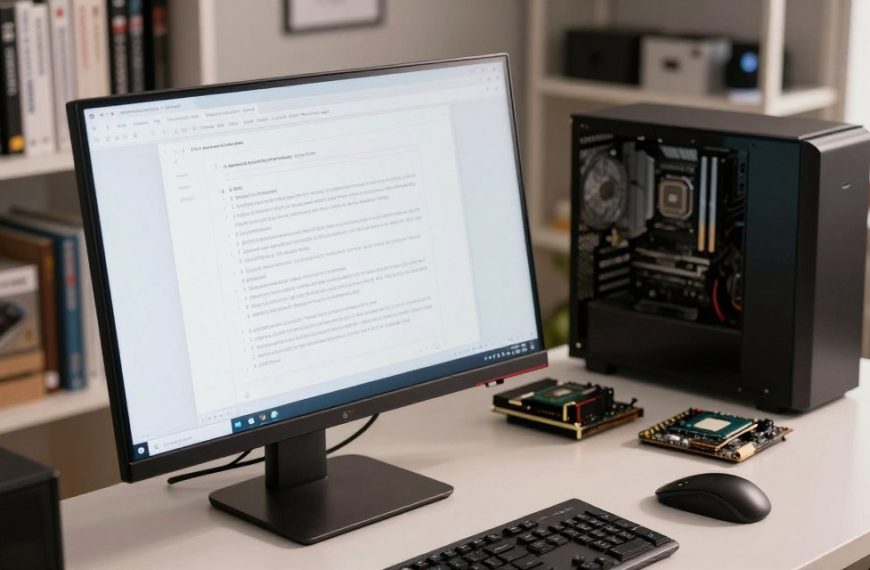
Every computer needs parts to process information, hold data, and connect input to output. Start with the hardware components of a computer that appear in most systems.
Learn each part by its job, not just by its name. A useful list of hardware components includes internal parts and devices you can see outside the case.
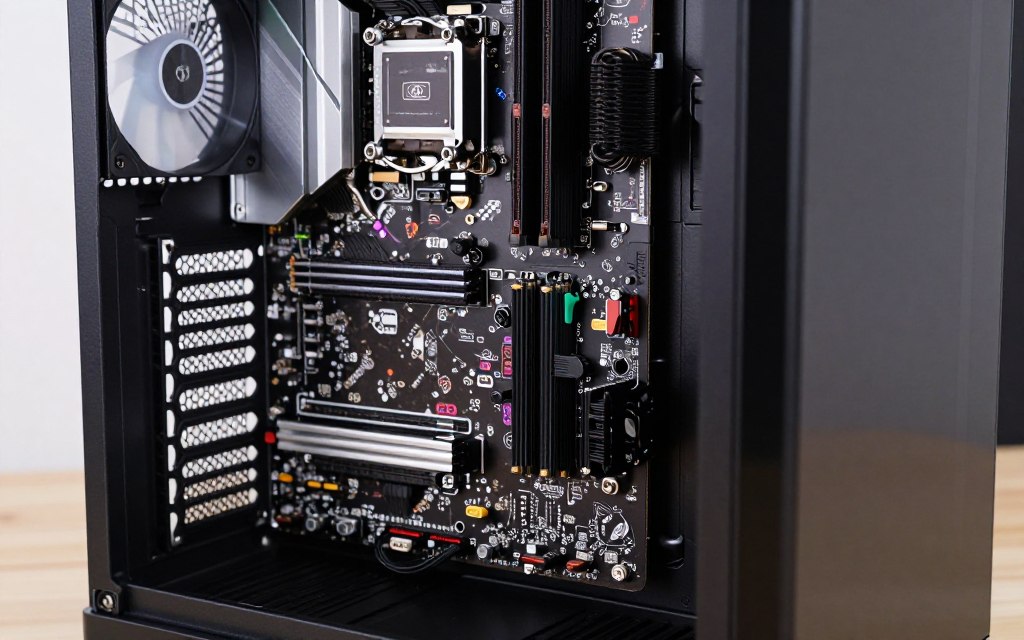
Core parts inside the case
The motherboard connects components and lets them communicate. The CPU, or central processing unit, runs program instructions; modern CPUs often have several cores.
RAM, or random access memory, holds active data temporarily. It is volatile memory, meaning it loses stored contents when power is removed.
An HDD stores data on spinning magnetic platters. An SSD uses flash memory and keeps data without power.
A GPU handles graphics processing, though graphics may be built into the CPU. A separate graphics card connects through a motherboard expansion slot.
The case holds internal parts, while the PSU supplies and distributes electrical power. Many modern desktops use a 500-850W PSU; the right capacity depends on system power needs.
| Component | Main job | Data or signal role |
|---|---|---|
| CPU | Runs instructions | Processes data |
| RAM | Holds active data | Temporary, volatile memory |
| HDD | Stores files | Magnetic disk data |
| SSD | Stores files | Flash memory data |
| GPU | Handles graphics | Creates image signals |
Input, output, and network devices
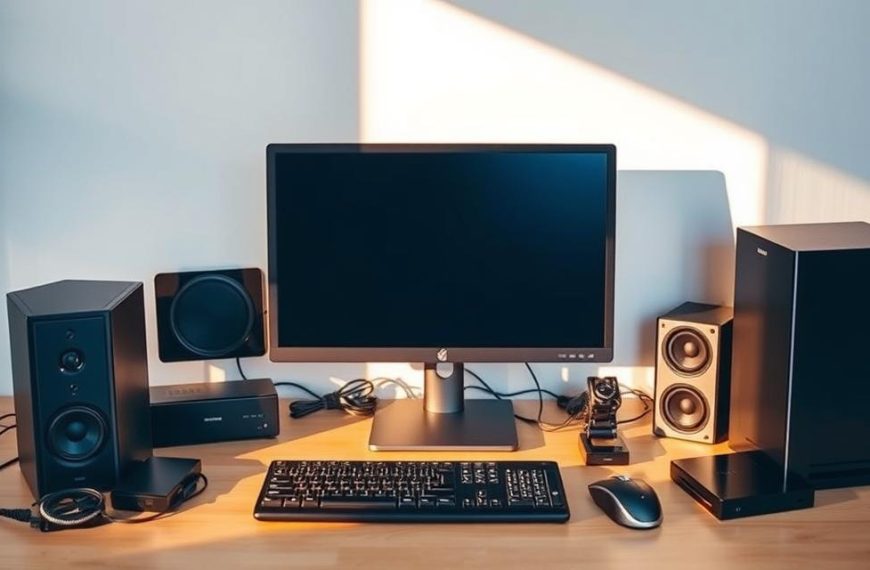
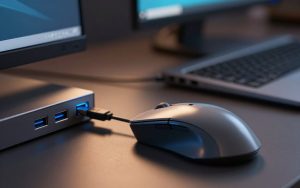
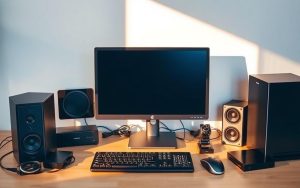
Keyboards and mice provide input; monitors and speakers provide output. Routers, switches, modems, and network cables connect computers to networks.
Optical drives, sound cards, and network interface cards are other examples. These make 10 examples of computer hardware when you count the motherboard, CPU, RAM, HDD, SSD, GPU, case, PSU, keyboard, and monitor.
Recognizing parts is only the first step; next, put them into a learning sequence. Input, processing, output, and storage are easier to follow through a computer system’s core functions.
How Can I Learn Computer Hardware Step by Step?
You can learn faster by studying one component group at a time and linking it to a real task. Start with familiar devices, then work inward toward the parts inside the case.
Connect each component to its job and to a symptom it may cause when faulty. Keep computer hardware notes that record both points, such as low memory causing slow app switching.
Start with parts and their jobs
Pair a visual lesson or structured online material with a computer you can observe. This makes how can i learn computer hardware online a practical question: choose lessons that match what you can see.
Follow a task, such as saving a document, from typing through processing and display to storage. A [link] lesson that traces input, processing, output, and storage can help connect those steps.
Build knowledge through a learning sequence
- Identify input and output devices.
- Locate the motherboard, CPU, RAM, storage, PSU, and graphics hardware.
- Learn what each part does during a computer task.
- Compare common specifications, such as capacity and interface.
- Test your understanding by explaining how a task moves through the system.
Compare specifications only after you know what they describe. CPU clock speed alone cannot tell you the whole story of system performance.
Notes become more useful when they link a part, its role, and a likely fault. Once the concepts make sense, practice them through low-risk observation.
How Can You Practice on a Real PC?
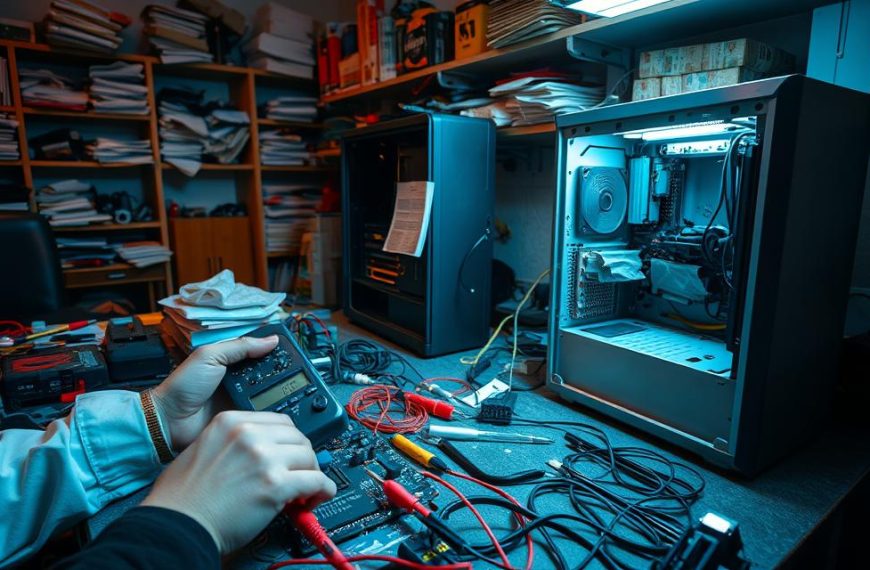
Before attempting an upgrade, identify the RAM and storage in a computer you can access. Begin without removing parts, and compare visible specifications with the hardware inside.
Only try upgrades on a system confirmed to support the new components. An old or inexpensive desktop can help you practice disassembly, but a broken computer is not automatically safe.
Begin with observation and simple upgrades
Check the computer’s model and specifications, then compare them with its physical parts. Look for a simple, compatible upgrade, such as adding supported RAM or replacing an HDD with an SSD.
Keep the manual nearby and stop if the layout or part does not match what you expected. You can learn a lot by identifying components without taking them out.
Prepare before opening a computer
Use this checklist before touching internal parts:
- Shut down and unplug the PC.
- Work on a stable, uncluttered surface.
- Ground yourself before touching internal parts to reduce static risk.
- Consult the device manual and confirm compatibility.
- Stop if the task involves opening the PSU or handling damaged wiring.
The PSU can retain a hazardous electrical charge, even after unplugging. Never open a PSU as a beginner.
Keep your practice within tasks you can do safely. For topics that need special tools or deeper knowledge, use reliable learning materials instead.
Which Online Resources Help You Learn Hardware?
Choose between watching a part being installed and following a structured lesson with exercises. The best fit depends on whether you need a visual example, notes, or guided practice.
Compare course format, practice, and credential separately. A course certificate shows completion, but it does not prove hands-on competence.
Free tutorials and self-study notes
Video tutorials can show where a part fits, while written computer hardware notes help you review terms and compare data. Khan Academy’s How Computers and the Internet Work covers binary, circuits, CPU, memory, input, output, and hardware and software.
The Open Learning Initiative’s PC Hardware course is self-paced and includes simulated exercises. Pluralsight’s Computer Fundamentals: Hardware course is about two hours and covers internal and external hardware, plus upgrades.
Structured courses and certificates
Listed edX hardware and operating systems courses run for six weeks, with a $150 certificate. Access and fees can change, so check current course details and certificate terms before enrolling.
| Resource type | Best use | Practice included | Credential |
|---|---|---|---|
| Video tutorials | See parts installed | Follow a visible demo | Usually none |
| Self-paced course material | Study at your pace | Simulated exercises in OLI | Depends on course |
| Structured certificate courses | Follow a set course | Course-based work | Certificate may cost extra |
Choose a format that suits your next step, whether you want personal troubleshooting, IT support, or further study.
What Can You Do With Computer Hardware Skills?
If a computer feels slow, hardware knowledge helps you check whether memory, storage, or another component may be involved. Basic skills support practical upgrades and troubleshooting.
Hands-on IT support differs from deeper study of computer architecture and engineering. Support work focuses on diagnosing problems, replacing parts, and helping people use computer systems.
Apply the skills to PC support and upgrades
Knowing component roles helps you decide whether a computer needs an upgrade or a replacement part. You can also describe symptoms more clearly when seeking help.
IT support can include setup, troubleshooting, device maintenance, and network help. Some roles rely more on people skills, while others require deeper knowledge of a system’s processing unit and hardware.
Continue into computer science or engineering
Many computer science programs include computer organization or architecture. Course depth and requirements vary by program.
Those topics explain how a CPU processes instructions and how parts communicate. Becoming a computer hardware engineer typically involves substantial study in engineering or computer science, though qualifications vary by role.
Start with the skills that fit your goal. Support work builds practical troubleshooting, while engineering study examines how computer systems are designed.
You do not need to settle on a career now. Open the settings on a computer you can use and write down its CPU, RAM, and storage.
Conclusion
Familiarity grows when you connect each computer part to its job and see how the components work together. Repeated observation makes unfamiliar names easier to remember.
Choose one part in a computer you can access, then learn its role and specifications. Start with the CPU, RAM, or storage, and use the model details to check what the system has.
Your next step is simple: identify the CPU, RAM, and storage in a computer you can access, then write down what each does.

 By
By

 By
By