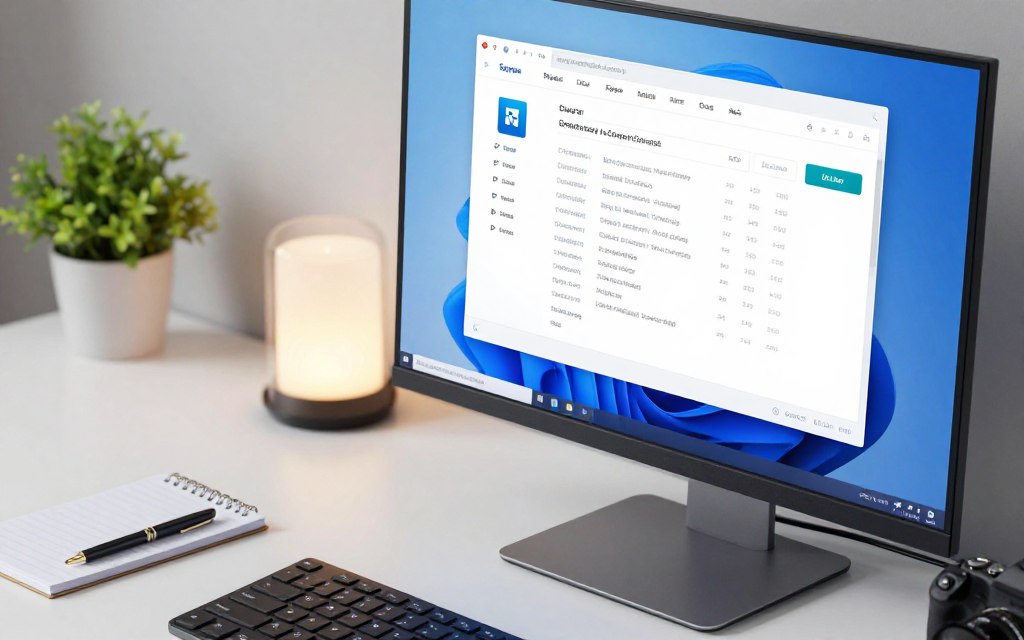

An app asks for your processor or memory details before it will install. PC specifications (specs) are the hardware and Windows details that identify what a computer can run and how it is configured. Finding the right information can help you check a software requirement, answer a support question, or investigate a problem.
Windows includes built-in ways to view a quick summary and inspect specific components. The best place to start depends on whether you need a basic answer or a deeper look. You can check the Windows version and device details, then use other tools for component information and current performance. You can start with the basic About page and move to more detailed tools when you need them.
Key Takeaways
- Settings > System > About shows basic device and Windows details.
- System Information lists motherboard and BIOS information.
- Task Manager shows live component use and activity.
- DirectX Diagnostic Tool shows graphics card and driver details.
- Compare exact component details with the app’s own requirements.
How Do I Check the Hardware in My Computer With Windows Settings?
Go to Start > Settings > System > About to see your device’s basic hardware and Windows details. Device specifications lists key components, while Windows specifications identifies your edition and version.
The About page gives a quick summary, not a full hardware inventory or a count of free storage space. For that, use the separate Storage page.
Use About for a quick summary, and use Storage to check available space.
Find Basic Details on the About Page
To answer how do i check the hardware in my computer on Windows 11, follow these steps:
- Select Start, then Settings.
- Choose System in the Settings window.
- Select About near the bottom of the System page.
The same route works for how do i check the hardware in my computer on Windows 10. Device specifications shows the device name, processor, installed RAM, and system type, such as 64-bit.
Windows specifications shows your Windows edition and version. These details help when software lists a supported Windows version or a support agent asks which system you use.
Microsoft’s Windows device information page describes the About details and the separate storage view.
Open About With Settings or the Windows Key Shortcut
Press Windows key + I to open Settings, then choose System > About. This shortcut is a quick way to check PC specs on Windows 11 with a shortcut, without first opening Start.
For storage use, open System > Storage. The page shows how space is being used. If your PC has several drives, select Advanced storage settings > Storage used on other drives to view usage across them.
Storage use is not the same as drive capacity. About identifies the system’s installed hardware, while Storage helps you see how much space files and apps currently take.
Windows 10 support ended on October 14, 2025. Microsoft no longer provides its free Windows Update software updates, technical assistance, or security fixes for Windows 10.
If you need motherboard or BIOS details, open System Information for a fuller view.
Where Can You Find Motherboard and BIOS Details?
Press Windows key + R, enter msinfo32, and press Enter to open System Information. Its System Summary shows key details, including the motherboard model and BIOS version.
Use System Information when basic device details do not answer a support or component question. It also lists hardware resources, components, and driver information.
Use System Information to Inspect the Full Inventory
The System Summary gives you a useful starting view of the computer. Look for the system manufacturer and model, baseboard details, and BIOS version or date.
Some entries may use names that differ from the name on your computer’s case. Record the exact model text when support staff or an upgrade guide asks for it.
Expand the categories in the left panel to inspect hardware resources, components, and software environment details. The sections can include devices, drivers, and information about how Windows uses hardware.
The motherboard connects the computer’s main components. Its model helps you check whether a processor, memory kit, or other part can work with the system.
That makes System Information useful for how to check PC hardware, including the motherboard. A motherboard model alone does not confirm that every part fits; exact component support matters too.
Find Computer Specs on Windows 7
Windows 7 users can open Control Panel > System for a basic summary. To find computer specs on Windows 7 in more depth, press Windows key + R, enter msinfo32, and press Enter.
The same System Information categories can help identify model and BIOS details. Some names or available fields may vary by computer and installed hardware.
If you want to see what your components are doing right now, use Task Manager’s live performance view.
How Can Task Manager Show Your PC Specs and Live Performance?
If your PC slows during a demanding task, Task Manager’s live graphs can show which resource is busy. Press Ctrl + Shift + Esc, then select the Performance tab.
Live usage shows current activity, not whether a component is faulty. Check the pattern while the slowdown happens, rather than judging the computer from one moment.
See PC Specs on Windows 11 and Windows 10 in Task Manager
Task Manager works on both Windows 11 and Windows 10. After opening it, select Performance in the left panel or tab area to view component entries and graphs.
This answers how to see PC specs on Windows 11 and how to see PC specs on Windows 10 when you also want to watch current performance. Select a component to see its details.
The page changes as your PC works. For example, a game may raise GPU use, while a large file copy may keep a disk busy.
Read the CPU, Memory, Disk, and GPU Entries
The CPU entry can show the processor model, core count, and speed. The Memory entry shows RAM capacity, speed, and how many memory slots are in use.
Disk entries show storage device information and current activity. Network entries show network activity, while the GPU entry identifies the graphics processor and shows its use.
Some PCs also show an NPU as a separate Performance entry. An NPU is a processor feature for certain AI workloads, and it may not appear on your device.
Compare a graph with the task you were doing. High use during an intensive task can be expected, while a graph alone cannot prove a hardware fault.
For graphics driver or VRAM information, open the DirectX Diagnostic Tool.
How Do You Check Graphics Details With DirectX Diagnostic Tool?
The built-in DirectX Diagnostic Tool shows graphics and display details, including your graphics card model, video memory, and driver version. To open the diagnostic tool:
- Press Windows key + R.
- Enter dxdiag in the Run box.
- Press Enter and wait for the tool to load.
Record the exact graphics card model and driver version when checking an app requirement or contacting support. The Display tab is the main place to find those details.
Select the Display tab to see the adapter name, VRAM amount, and driver version. VRAM is the memory used by a graphics card for visual tasks.
A PC can have more than one display adapter entry. Check which one is relevant to the app, especially if the computer lists both integrated graphics and a separate card.
The DirectX diagnostic details can help when comparing a graphics requirement with your system. Copy the model and driver text as shown, since similar card names can refer to different versions.
If an app lists a driver requirement, compare its wording with the driver version shown here. A graphics card model and a driver version answer different questions.
Now that you can locate the specifications, it helps to know what the main component names mean.
What Do Your CPU, RAM, Storage, and GPU Specs Mean?
A component number is useful only when you know what job that part performs. The CPU processes instructions, RAM holds short-term working data, storage keeps files, and the GPU handles graphics.
Capacity or a model name alone cannot answer every performance question. The task, app, and other parts of the system also matter.
| Component | What it does | Detail to compare |
|---|---|---|
| CPU | Processes instructions | Model and speed |
| Motherboard | Connects components | Model and supported parts |
| RAM | Holds short-term working data | Capacity and speed |
| Storage | Keeps files and apps | Drive type and capacity |
| GPU | Handles graphics work | Model and VRAM |
CPU and RAM Describe Processing and Multitasking
The processor, or CPU, carries out instructions from Windows and your apps. Its model and speed can help you compare systems, but neither figure tells the whole story by itself.
RAM is short-term working memory. It holds data that apps need while they run, unlike storage, which keeps files when the computer is off.
Eight GB of RAM can suit light everyday use. Sixteen GB or more is a reasonable target for gaming or creative work, depending on the apps and tasks.
Some newer computers include an NPU, a processor feature for certain AI workloads. An NPU is not required for ordinary PC use.
Storage Holds Files and Affects Loading
An HDD stores data on spinning platters. An SSD uses flash memory and has no moving parts.
An SSD can make a PC feel more responsive during startup and app loading. Drive type can matter even when two drives have similar storage capacity.
Keep the distinction clear: RAM supports active work, while storage holds files and applications for later use. Available space can also affect whether you can install another app.
Graphics Hardware Handles Visual Work
Integrated graphics share system RAM. A dedicated graphics card has its own VRAM, which it uses for visual work.
A GPU model and its VRAM can help you compare graphics requirements. The application’s needs still determine whether a particular setup is suitable.
Compare the specifications you found with the exact requirements of the app or game you want to run.
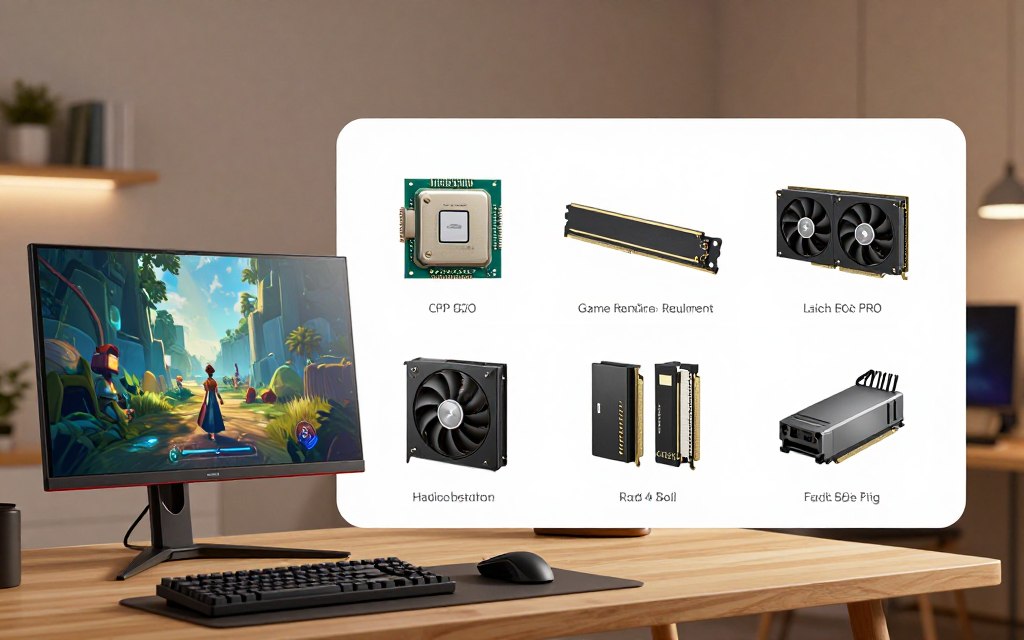
How Can You Tell Whether Your PC Meets an App or Game’s Requirements?
If a game lists a dedicated GPU and your PC has integrated graphics, compare those details directly. Like-for-like checks help you spot a possible mismatch.
The app or game’s own requirement list takes priority over a general rule of thumb. Minimum and recommended requirements serve different purposes.
Compare Each Requirement With the Matching PC Detail
Minimum requirements describe the lowest listed setup for running the software. Recommended requirements point to a system intended to provide a better experience.
Compare the requirement’s exact type and model with your PC detail. For memory, compare the RAM amount; for graphics, check the card model and VRAM.
| Component | Where to find the app requirement | Matching PC detail | What a mismatch can affect | What to verify |
|---|---|---|---|---|
| CPU | App or game requirement list | Processor model | Speed or supported features | Exact model name |
| RAM | Memory requirement | Installed RAM | App loading or multitasking | Required capacity |
| GPU | Graphics requirement | GPU model and VRAM | Visual quality or performance | Card and VRAM amount |
| Storage | Install size | Free drive space | Ability to install or update | Required space and drive |
For gaming at 1080p or 1440p, a practical starting point for many current games is an Intel Core i5 or AMD Ryzen 5 class CPU, 16 GB RAM, and a dedicated GPU with at least 8 GB VRAM. A 512 GB or larger NVMe SSD is another common starting point, not a guarantee.
Actual requirements vary by game, settings, and target performance. Check the title’s own list before using that example to judge your computer.
Check What an Online PC Specs Tool Can and Cannot Confirm
To check my PC specs online, you may use a tool that compares details you enter or a system report. It can help organize a match between your PC and an app’s listed needs.
A browser-based checker cannot establish hardware health just from the information on a page. It may also have limited details if you do not provide a full system report.
A mismatch is a clue for further checking, not proof that your computer is broken.
How Can You Diagnose Slowdowns and Possible Hardware Problems?
If a familiar task slows down in the same way each time, check whether the same resource is repeatedly under strain. A repeatable pattern gives you a better starting point than a single spike.
One symptom alone cannot identify a failed part. Software, heat, power, or a loose connection can cause similar problems.
Check Whether a Resource Is Consistently Under Strain
To answer how can you diagnose my PC hardware, use a short sequence during the task that causes trouble:
- Reproduce the slowdown with the same task.
- Note which resource shows heavy use.
- Check whether storage space is low.
- Compare the pattern with the task being performed.
A demanding task can use a lot of one resource without signaling a fault. Look for a pattern that repeats during the problem, and note what the computer was doing.
Windows Security may show available device health information. Treat those checks as a general review, not a complete physical test of every part.
Look for Symptoms That Point to a Component
Investigate these signs, especially when they recur or happen during normal use:
- Repeated crashes
- Unexpected shutdowns
- Unusual drive noises
- Persistent overheating
- Errors that return after restarting
These signs can have more than one cause. A crash may involve software, while a shutdown may relate to heat or power.
If Windows does not recognize a device, check its connection and status before assuming the device has failed. A cable, port, or loose connection can affect what Windows detects.
For a wider set of checks, see this guide to troubleshooting common computer hardware problems. It covers issues such as freezes, heat, and drives Windows cannot find.
Use your findings to decide whether the system meets your needs or needs further attention.
What Should You Do After Checking Your PC Specs?
Your specifications are a decision aid, not a scorecard that says every older PC should be replaced. Your actual workload, software support, and reliability matter more than age alone.
A ten-year-old computer can still be useful if it handles your tasks, gets the software support you need, and remains reliable.
Decide Whether the Current PC Meets Your Needs
Start with the tasks you need the computer to handle. A system that works well for web browsing and basic documents may not suit a demanding game or creative app.
Check whether the software you rely on still supports your Windows version. Age alone does not show how fast a computer is or whether its parts are in good condition.
If you are planning an upgrade, find the exact device model and check which components it supports. Compatibility can depend on the specific computer, not just the processor or motherboard name.
Use Online Checks Carefully and Choose a Next Step
You can check my PC specs online with a comparison tool that uses details you enter or a system report. Use its result as a guide, not as a physical health test.
If the computer meets the requirements and works reliably, you may not need to change anything. If an app reports a mismatch, compare its exact requirement with your recorded model and figures.
When symptoms keep returning, use the information you gathered to guide further diagnosis or a support request. Do not treat a single performance reading as proof of a failed component.
Save the processor, RAM, storage, GPU, and Windows version details for the support or compatibility question you are trying to answer.
Conclusion
Settings > System > About is the quickest place to begin checking your PC’s specifications. Use a more specific built-in tool when your question involves the motherboard, live performance, or graphics drivers.
Record only the details that matter for your current support request or app requirement. Exact model names and versions can help others understand what your computer has.
Open the Windows page that fits your task and write down the details you need. Keep the notes with the software requirement or support question you are trying to answer.


 By
By


 By
By