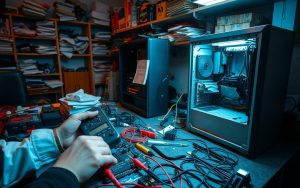
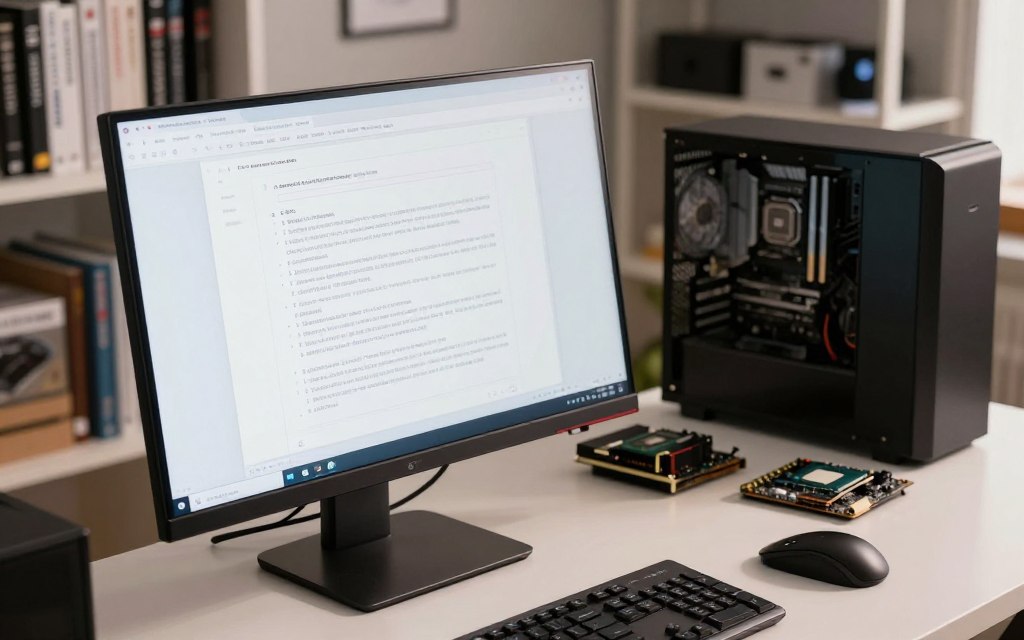

When you open a document, computer hardware turns the software’s instructions into words on your screen. The task feels simple, but several physical parts work together behind it.
Learning how computer hardware works gives you a clearer view of what your device can do. Software supplies instructions, while the physical parts carry them out. That difference matters when you choose a computer, solve a problem, or decide why a task feels slow.
A program is a set of instructions written as code. Your computer reads those instructions and handles the data they need. Hardware means the physical parts of a computer system. This guide explains how signals and instructions become useful work, starting with the basic meaning of hardware.
Key Takeaways
- Hardware is the physical part of a computer; software provides instructions.
- The CPU processes instructions and data.
- RAM holds active work while the computer runs.
- Persistent storage keeps saved files after shutdown.
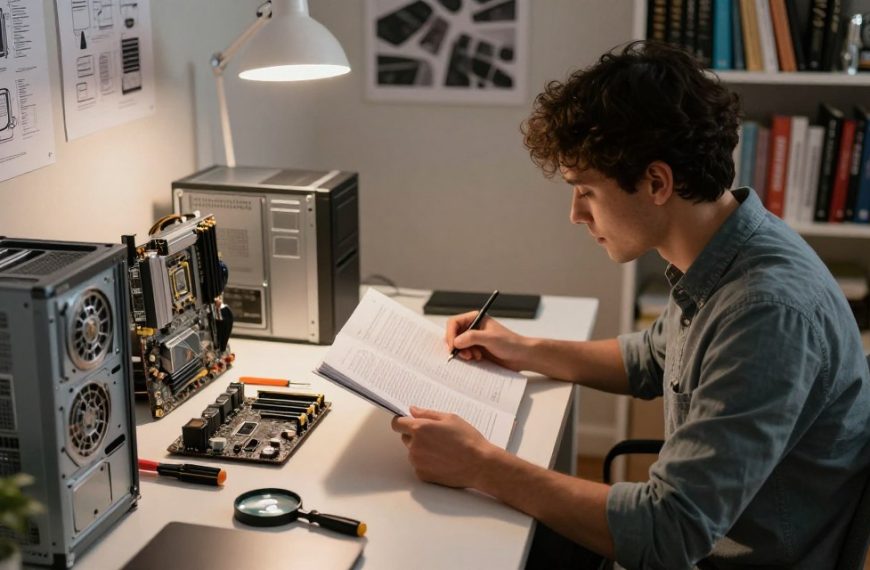
- The motherboard connects internal parts, and the PSU supplies power.
- Input, output, and graphics parts help you interact with a computer.
How Computer Hardware Works at a Basic Level
Hardware is the physical part of a computer, while software is the code and instructions that direct it. The two depend on each other to handle data and complete tasks.
Hardware can be inside a computer or attached outside it. The broad roles are input, processing, storage, and output. Many everyday devices also contain computing hardware, even when they do not look like PCs.
Hardware performs the physical work, while software tells it what work to do.
What is computer hardware, and what is hardware?
Computer hardware includes the tangible components that make a computer system work. You can touch a keyboard, a memory chip, or a cable. These parts handle signals and data under software control.
Hardware may sit within a case or connect to it. A desktop has internal components, while a laptop packs most of them under its keyboard. A phone also contains hardware, though its parts are smaller and less visible.
You can group the main hardware roles into four types:
- Input: sends information or commands to the computer.
- Processing: follows instructions and changes data.
- Storage: keeps code and files for later use.
- Output: presents results in a form people can use.
Hardware and software of a computer have different jobs
Software includes programs, code, and operating system instructions. Hardware carries out those instructions through physical operations. A word processor, for example, tells components how to display and edit text.
Hardware without useful software cannot perform most tasks people expect. Software without hardware has no physical system to run on. Their shared work lets you create, change, send, and view data.
A computer carries out those tasks through electrical signals. Those signals switch through tiny parts inside chips, where the basic work of modern computing begins.
How Transistors Become Computer Chips
Picture one electrical switch on a chip responding to a signal. A transistor is a tiny electronic switch that uses an electrical signal to control the flow of current.
A silicon chip can be about the size of a fingernail and contain billions of transistors. Groups of these switches form the circuits that support computer processing and memory.
Computer hardware notes: follow a signal from transistor to chip
A transistor can switch a signal on or off. Computers use those changing signals to represent and process data. Patterns of signals can stand for instructions, numbers, text, or other information.
Many transistors work together in a chip. Different chips support processors, memory, and flash storage. Each chip has a specific design, but all rely on electrical signals moving through small circuits.
The chip material is silicon, not silicone. Silicon is a solid material used to make chips. Silicone is a soft, rubbery material found in products such as sealants and kitchen tools.
Why smaller transistors changed computing
As transistors became smaller, engineers could fit more of them on a chip. This helped computers handle more work in a compact space. Smaller parts also helped make many electronic devices more capable.
Moore’s Law describes a past trend in transistor density. Historically, the number of transistors on a chip doubled about every two years. Some descriptions use about 18 months instead.
Moore’s Law is an observation, not a scientific law or a promise that speed doubles at the same rate. Chip density and computer speed are related, but they are not the same measure.
These switching parts form the chips that make computing possible. One key chip is the CPU, which carries out program instructions.
What Does the CPU Do?
When you click a program’s Run button, the CPU begins carrying out its instructions. The central processing unit, or CPU, processes code and data inside the computer.
The CPU follows instructions and performs operations such as calculations and comparisons. It is sometimes called the computer’s brain, but that comparison has limits: a CPU follows rules rather than thinking.
How the CPU runs instructions and calculations
The CPU reads program instructions and performs the steps they describe. It can add numbers, compare values, and move data between parts of a program. Each task depends on a sequence of instructions.
Everyday actions use this central processing. A CPU can calculate a number in a spreadsheet, format a text message, or run a drawing program. The software sets the task, and the CPU carries out the needed operations.
A processing unit does not handle every task alone. It exchanges information with other components as a program runs. The CPU may process text while the graphics hardware prepares what appears on the screen.
Why more CPU cores do not mean proportionally more speed
A modern CPU can have several cores. Each core acts as a semi-independent processing unit, so multiple parts of a task can run at once.
Four cores do not automatically make a computer four times faster. The software must be able to divide its work into parts that can run at the same time. Some tasks have steps that must happen in order.
Extra cores help most when software can share its work across them. A program that relies on one main sequence may gain less from more cores than software built for parallel work.
The CPU also needs a fast place to keep the code and data it is using. That temporary working area is RAM.
How RAM Holds Active Work
A document and several browser tabs can stay open at the same time because the computer keeps their active code and data in random access memory, or RAM.
RAM is a fast, temporary working area for programs and data in use. A byte in RAM can typically be retrieved in a few nanoseconds, which helps the CPU reach active information quickly.
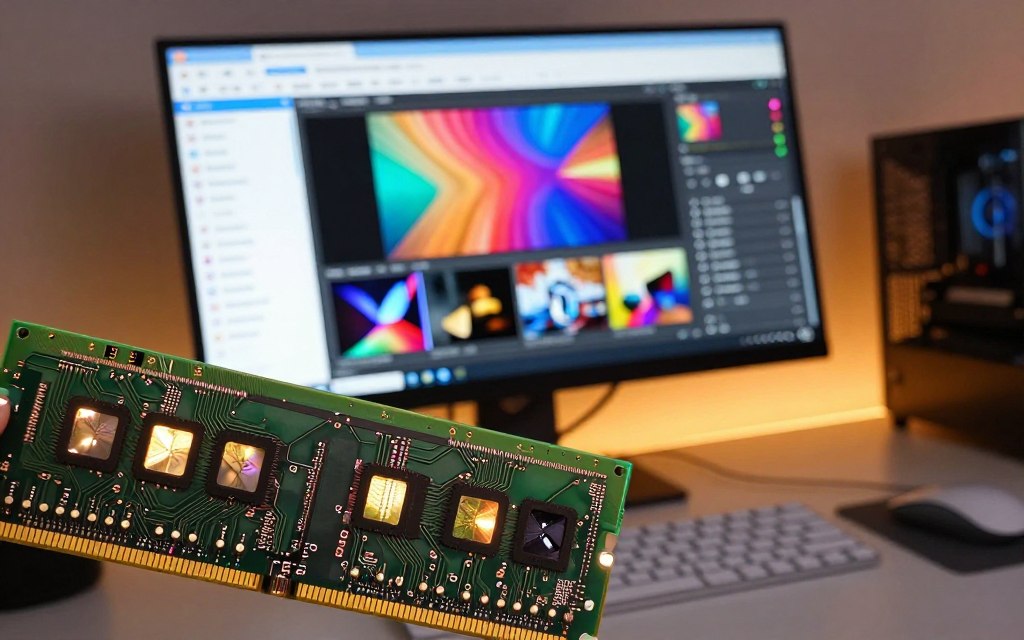
Think of RAM as a scratchpad or whiteboard. You can place several items there and reach them quickly. An open browser tab uses RAM, as does an image that you are editing.
RAM holds both active program code and the data those programs need. It is volatile memory, which means it loses its stored state when power is removed. Unsaved edits may disappear if the computer shuts off unexpectedly.
Running out of RAM can limit how many programs or tabs remain usable. Your computer may struggle to keep many active tasks ready at once. Closing tabs or apps can free some working space.
A saved copy on persistent storage remains available after shutdown, but unsaved work held only in RAM may not. Save changes before a power loss can interrupt the computer.
RAM supports work while the computer is on. Files and applications that remain after shutdown have a different home: persistent storage.
Where Files Stay When the Power Is Off
A saved photo remains on your computer after shutdown, unlike the temporary contents of RAM. Persistent storage keeps files and program data when power is off.
HDDs store data as magnetic patterns, while SSDs store it in flash memory without moving parts. SSDs are generally faster and use less power; HDDs typically cost less per byte.
How HDDs and SSDs store files
A hard disk drive, or HDD, stores data on spinning disks. A read-and-write head works with magnetic patterns on those disks. The moving parts make an HDD different from a solid-state drive, or SSD.
An SSD uses flash memory and has no moving parts. USB flash drives also use flash storage, often in a small portable form. Flash storage is unrelated to Adobe Flash, the former multimedia software platform.
SSDs can feel much faster when a computer starts or opens files. HDDs often offer a lower cost per byte, which can suit large collections. The best choice depends on the speed and capacity you need.
| Device | Storage method | Moving parts | Typical role |
|---|---|---|---|
| HDD | Magnetic patterns on spinning disks | Yes | Large file collections |
| SSD | Flash memory | No | Fast computer storage |
| USB flash drive | Flash memory | No | Portable file transfer |
How a file system organizes stored data
A file system organizes stored bytes into named files and folders. It also tracks information about each file, such as its name and where its data sits on the drive.
A 48 KB image named flowers.jpg represents a block of image data. The name helps you recognize the file, while the file system keeps track of its stored parts.
Storage capacity adds up across files. One hundred files that each use 1 GB require 100 GB of storage. That total can include photos, videos, applications, and other files.
An SSD does not replace RAM because it is much slower. Saved files live on persistent storage, while active work needs faster memory. If a drive is not detected or files fail to open, these common hardware troubleshooting steps can help you check the problem.
Storage, the CPU, and RAM need a connected pathway and a reliable power source. The motherboard and power supply help provide both.
How the Motherboard, Power Supply, and Cooling Fit Together
Power starts at a wall outlet, then reaches the parts that need it through the computer’s power system. The motherboard connects internal components so they can exchange information.
The PSU changes outlet power into usable power for internal components. The motherboard is the main circuit board, while cooling parts help move heat away from processors.
How the motherboard connects hardware components of a computer
The motherboard is a shared connection point for the CPU, memory, storage, and other internal parts. It gives components a path to communicate within the system.
Different connections serve different parts. A processor fits into a CPU socket, while memory modules and storage devices use their own connectors. The board also carries pathways that let parts send signals.
Hardware components of a computer need those links to work as one system. If a connection is loose or a part is not supported, the computer may fail to start or recognize that component.
What the power supply does for internal parts
The power supply unit, or PSU, takes electrical power from an outlet and changes it into forms internal components can use. Cables carry power from the PSU to the motherboard and other parts.
A computer needs steady power while its parts work. The PSU must match the system’s needs and have the right connections. A faulty unit can cause shutdowns, startup trouble, or other signs of power loss.
How heat sinks and fans protect components
Processors produce heat during operation. A heat sink draws heat away from a processor, and a fan moves air to help carry that heat out of the case.
Cooling helps keep heat from building up around working parts. A fan needs open air paths to move heat away, so dust or blocked vents can make cooling less effective.
| Part | Job | Connects to or affects |
|---|---|---|
| Motherboard | Links parts and carries signals | CPU, memory, storage |
| PSU | Changes outlet power for computer use | Motherboard and internal parts |
| Heat sink | Draws heat away | Processor temperature |
| Fan | Moves air through the case | Airflow and heat removal |
Some computers use liquid cooling to move heat, but most everyday PCs do not need it. Air cooling with a heat sink and fan is common. If your computer overheats or shuts down, these steps for checking cooling and power issues cover basic checks.
Once the internal parts have power and connections, graphics hardware and external devices help you see results and control the computer.
How GPUs and Devices Move Information In and Out
When a game draws a scene, the graphics processing unit, or GPU, prepares images that appear on your monitor. A GPU specializes in graphics work, including video and 3D scenes.
A GPU can be built into a CPU or placed on a dedicated graphics card. Integrated graphics suit many everyday tasks, while demanding graphics work may benefit from a dedicated GPU.
What the GPU handles, from video to 3D graphics
A GPU handles many operations needed to render images, video, and 3D scenes. It helps turn visual data into frames that a display can show.
Integrated graphics share a chip with the CPU. A dedicated graphics card has its own GPU and may suit games or other demanding visual tasks. You do not need a dedicated card for every computer or every user.
Graphics hardware works with the rest of the computer. The CPU and GPU exchange data, then the monitor presents the resulting image. A video file also needs software to decode and play its content.
A practical list of hardware components for input and output
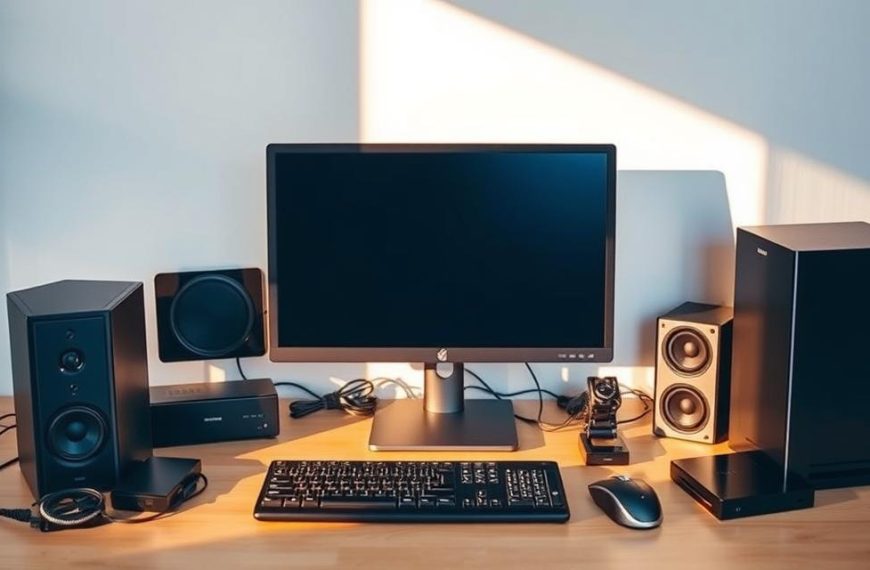
Input devices send commands or data into a computer. Output devices present results in a form you can see, hear, or print.
| Device | Input or output role | How it translates information |
|---|---|---|
| Keyboard | Input | Turns key presses into text or commands |
| Mouse | Input | Turns movement and clicks into pointer actions |
| Monitor | Output | Shows images, text, and video |
| Speakers | Output | Turn digital sound into audible sound |
| Printer | Output | Places digital text or images on paper |
Computers also exchange data over networks. Routers and switches direct network traffic, while a network interface card connects a computer to a network.
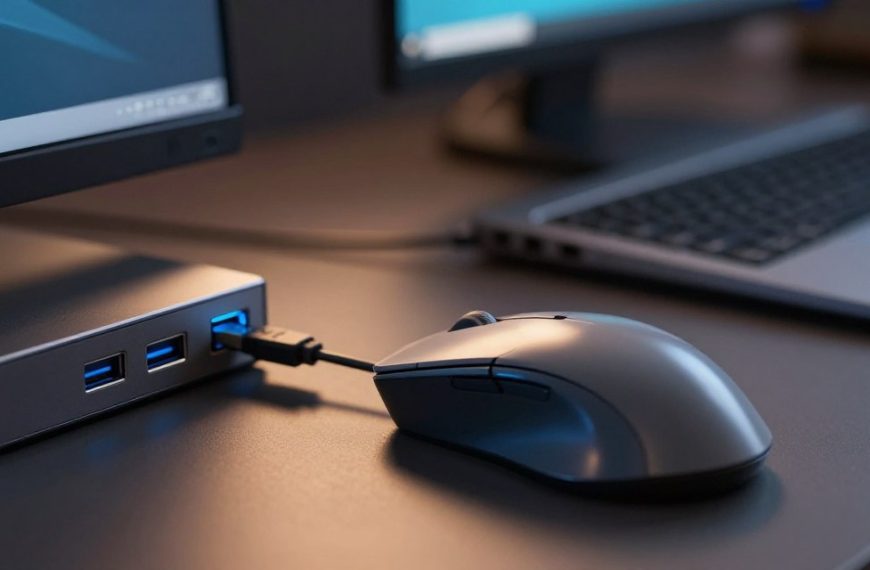
Common ports let you attach cables and devices. USB ports support many accessories, while video ports connect displays. Wireless links can also connect a computer to a network or other devices.
One everyday task can use processing, input, output, and storage together. Opening a photo, for example, begins with a click and ends with an image on screen.
What Happens When You Open and Save a File?
Imagine double-clicking a saved photo and waiting for it to appear. The computer moves information through several parts to open, show, edit, and save that file.
Opening a file depends on parts exchanging information, not one part doing everything. The operating system manages hardware resources and gives you the interface used to control the computer.
How a program moves information through the system
When you open a photo or document, these five steps describe the basic flow:
- Locate the file on persistent storage.
- Load active program code and file data into RAM.
- Let the CPU process the program’s instructions.
- Display the result through the relevant output hardware.
- Write saved changes back to persistent storage.
The system may repeat parts of this flow as you edit. When you change a photo, the program and computer process new information. Saving writes the changes into a stored file.
Not every task follows an identical path. A photo editor may use graphics hardware for visual effects, while a text editor may rely mainly on the CPU. The program’s needs shape which components do more work.
Why the operating system coordinates the parts
The operating system manages resources such as memory, processor time, and connected devices. It also provides the interface you use to open programs, work with files, and change settings.
When several programs run, the operating system helps share computer resources among them. It keeps track of active tasks and helps programs communicate with hardware. This lets you switch between apps without managing each component yourself.
A computer works as a system because its components exchange information. The CPU cannot display a result by itself, and storage cannot edit a file without software and other parts.
That same pattern appears beyond desktop PCs. Smaller computers use similar roles inside devices that may not look like computers at all.
How the Same Hardware Ideas Fit Phones and Small Devices
A thermostat or car system is a computer, even without a traditional PC case. Small devices still process instructions, hold active data, and retain information in some form.
A microcontroller combines a small CPU, RAM, and storage on one chip. It is designed for a focused control task, not as a miniature desktop PC.
A microcontroller brings key computing parts together for a specific control job.
What a microcontroller puts on one chip
A microcontroller combines several basic computing roles in a compact chip. Its CPU processes instructions, while RAM holds active data and storage retains information the device needs.
These parts may be integrated or less visible than parts in a desktop computer. A small device can use a simple screen, buttons, sensors, or automatic controls. The computing work still depends on hardware following instructions.
A microcontroller is built for a defined job. It may read a sensor and control a motor or display. It does not need the broad range of features found in a desktop system.
Where embedded computers do useful work
Embedded computers sit inside larger products and help those products work. You may not see their chips, but they process information from controls or sensors.
Common examples include:
- Cars, which use embedded systems for focused control tasks.
- Microwaves, which manage settings and cooking cycles.
- Thermostats, which track temperature and control heating or cooling.
Phones use compact hardware too, though they support many kinds of apps and tasks. Their parts may be packed tightly into a small case, yet they still handle instructions, active data, and stored information.
Think about the computer you use every day. Open its system information and identify the CPU, RAM, and storage in the device you use.
Conclusion
A computer works because its parts divide and coordinate the work. Hardware performs physical operations on data, and each component has a distinct job.
The CPU, RAM, storage, and connected parts depend on one another. A computer needs more than a fast processor to handle everyday tasks well. Its parts must share information and support the same work.
Open the system information on your own device. Identify its CPU, RAM, and storage type, then use those three names to make sense of how your computer works.

 By
By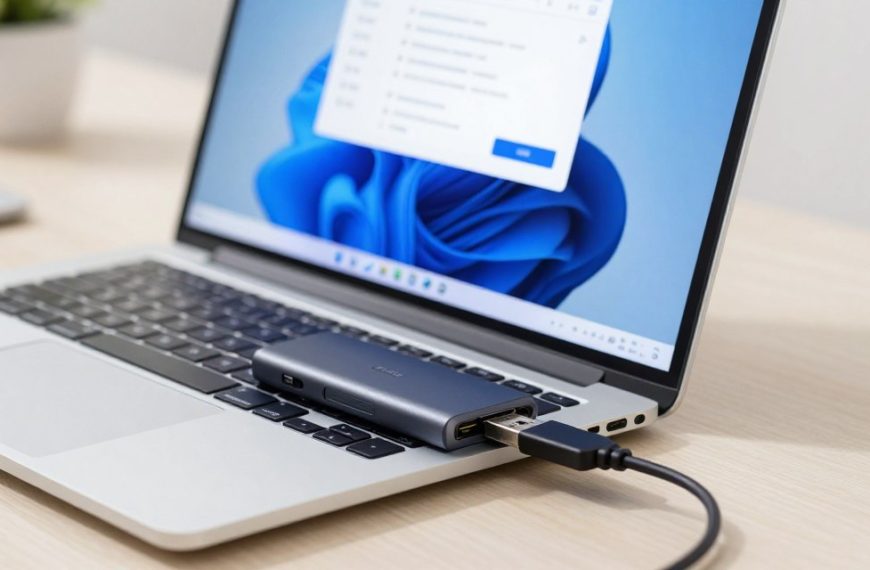

 By
By